> ## Documentation Index
> Fetch the complete documentation index at: https://docs.ducky.wiki/llms.txt
> Use this file to discover all available pages before exploring further.

# Creating Displays

> Create: Jukebox Display adds the Jukebox block as a display source to be used with the Create Mod's display links.

export const MinecraftRecipe = ({grid, result}) => {
  let items = {
    "andesite_alloy": {
      image: "/images/minecraft_items/create/andesite_alloy.png",
      tooltip: "create:andesite_alloy"
    },
    "electron_tube": {
      image: "/images/minecraft_items/create/electron_tube.png",
      tooltip: "create:electron_tube"
    },
    "display_board": {
      image: "/images/minecraft_items/create/display_board.png",
      tooltip: "create:display_board"
    },
    "cogwheel": {
      image: "/images/minecraft_items/create/cogwheel.png",
      tooltip: "create:cogwheel"
    },
    "transmitter": {
      image: "/images/minecraft_items/create/transmitter.png",
      tooltip: "create:transmitter"
    },
    "display_link": {
      image: "/images/minecraft_items/create/display_link.png",
      tooltip: "create:display_link"
    },
    "brass_casing": {
      image: "/images/minecraft_items/create/brass_casing.png",
      tooltip: "create:brass_casing"
    }
  };
  const resultItem = result?.item ? items[result.item] : null;
  const resultAmount = result?.amount || 1;
  return <div className="flex items-center gap-4 p-4 bg-[#c6c6c6] border-[3px] border-[#555555] border-t-[#ffffff] border-l-[#ffffff] rounded max-w-fit">
      <div className="grid grid-cols-3 gap-1">
        {grid.map((itemKey, index) => {
    const item = itemKey ? items[itemKey] : null;
    return <div key={index} className="relative group w-8 h-8 bg-[#8b8b8b] border-2 border-[#373737] border-t-[#ffffff] border-l-[#ffffff] flex items-center justify-center">
              {item && item.image && <>
                  <img src={item.image} alt={itemKey} className="w-7 h-7 object-contain hover:scale-110" style={{
      imageRendering: 'pixelated'
    }} />
                  {item.tooltip && [0, 3, 6].includes(index) && <div className={`absolute hidden group-hover:block z-50 bottom-full mb-2 left-1/2 -translate-x-1/2 bg-[#110111]/95 border-2 border-[#663a09] text-[#aaaaaa] text-xs px-2 py-1 w-max shadow-lg font-mono rounded-sm pointer-events-none pl-20 text-right`}>
                      {item.tooltip}
                    </div>}
                  {item.tooltip && ![0, 3, 6].includes(index) && <div className={`absolute hidden group-hover:block z-50 bottom-full mb-2 left-1/2 -translate-x-1/2 bg-[#110111]/95 border-2 border-[#663a09] text-[#aaaaaa] text-xs px-2 py-1 w-max shadow-lg font-mono rounded-sm pointer-events-none`}>
                      {item.tooltip}
                    </div>}
                </>}
            </div>;
  })}
      </div>
      
      <div className="text-3xl text-[#555555] font-bold drop-shadow-md">➔</div>
      
      <div className="relative group w-12 h-12 bg-[#8b8b8b] border-2 border-[#373737] border-t-[#ffffff] border-l-[#ffffff] flex items-center justify-center">
        {resultItem && resultItem.image && <>
            <img src={resultItem.image} alt={result.item} className="w-8 h-8 object-contain hover:scale-110" style={{
    imageRendering: 'pixelated'
  }} />
            {resultAmount > 1 && <span className="absolute bottom-[2px] right-[2px] text-white font-mono font-bold text-sm leading-none z-10 pointer-events-none" style={{
    textShadow: '2px 2px 0px #3f3f3f'
  }}>
                {resultAmount}
              </span>}
            {resultItem.tooltip && <div className="absolute hidden group-hover:block z-50 bottom-full mb-2 left-1/2 -translate-x-1/2 bg-[#110111]/95 border-2 border-[#663a09] text-white text-sm px-2 py-1 w-max shadow-lg font-mono rounded-sm pointer-events-none">
                {resultItem.tooltip}
                {resultAmount > 1 && ` x${resultAmount}`}
              </div>}
          </>}
      </div>
    </div>;
};

The mod adds **3** new display outputs: **Current Song**, **Song Title**, and **Artist Name**

<hr />

### What is This Stuff?

<AccordionGroup>
  <Accordion title="What are Display Boards?" icon="https://mintcdn.com/ducky-c8b7b49a/oEbd00tK3rFspoX8/images/minecraft_items/create/electron_tube.png?fit=max&auto=format&n=oEbd00tK3rFspoX8&q=85&s=5ab1da596f4282aafd0d66b5e5e3385b" width="16" height="16" data-path="images/minecraft_items/create/electron_tube.png">
    <img src="https://mintcdn.com/ducky-c8b7b49a/oEbd00tK3rFspoX8/images/minecraft_items/create/display_board.png?fit=max&auto=format&n=oEbd00tK3rFspoX8&q=85&s=ba5a95b889d3bbdfcd771379438393b8" width={48} data-path="images/minecraft_items/create/display_board.png" />

    Display Boards are a Create component that allows text to be displayed when given rotational power.
    <Steps>
      <Step title="Craft a Display Board">
        <Steps>
          <Step icon="https://mintcdn.com/ducky-c8b7b49a/oEbd00tK3rFspoX8/images/minecraft_items/create/clipboard.png?fit=max&auto=format&n=oEbd00tK3rFspoX8&q=85&s=62cb10a752e13d31e695b24f1468c7b0" title="Required Items" width="16" height="16" data-path="images/minecraft_items/create/clipboard.png" />

          <Step icon="https://mintcdn.com/ducky-c8b7b49a/oEbd00tK3rFspoX8/images/minecraft_items/create/electron_tube.png?fit=max&auto=format&n=oEbd00tK3rFspoX8&q=85&s=5ab1da596f4282aafd0d66b5e5e3385b" width="16" height="16" data-path="images/minecraft_items/create/electron_tube.png">
            [Electron Tube](https://create.fandom.com/wiki/Electron_Tube)
          </Step>

          <Step icon="https://mintcdn.com/ducky-c8b7b49a/oEbd00tK3rFspoX8/images/minecraft_items/create/andesite_alloy.png?fit=max&auto=format&n=oEbd00tK3rFspoX8&q=85&s=d1bb96442862bfc519e2c6ab71b5a3b4" width="16" height="16" data-path="images/minecraft_items/create/andesite_alloy.png">
            [Andesite Alloy](https://create.fandom.com/wiki/Andesite_Alloy)
          </Step>
        </Steps>

        <MinecraftRecipe grid={[null,null,null,'andesite_alloy','electron_tube','andesite_alloy',null,null,null]} result={{item: 'display_board', amount: 2}} />
      </Step>

      <Step title="Power your Display Board">
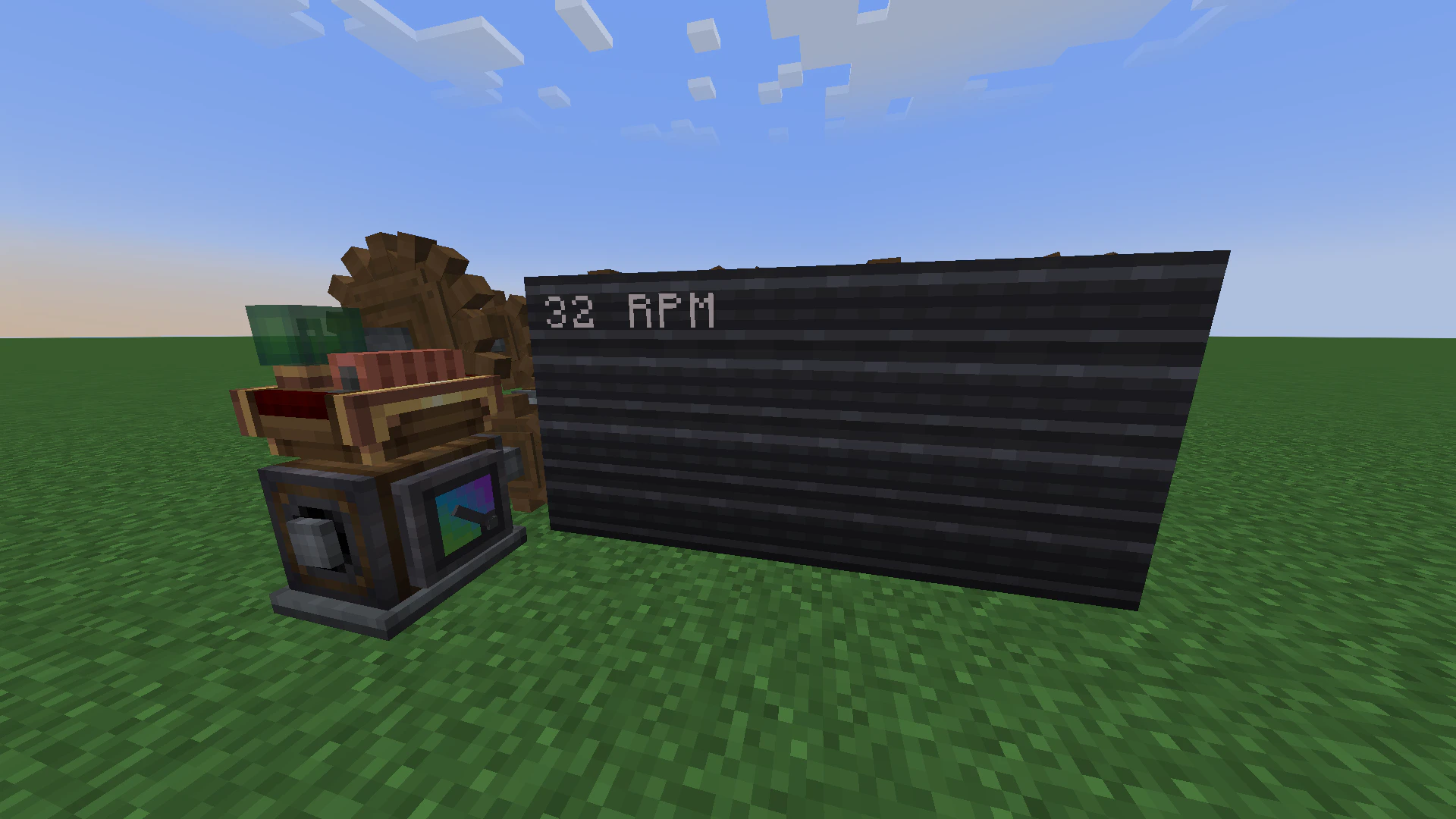
        Display Boards run on rotational power from the side using a cogwheel. The exposed cog on the other 3 sides can be used to power additional Display Boards.

        30 RPM of rotation must be provided, but the number of Display Boards can scale up without increasing the power input.

        <Frame caption="At least **30 RPM** is required to power Display Boards">
          <img src="https://mintcdn.com/ducky-c8b7b49a/oEbd00tK3rFspoX8/images/display_rpm_example.png?fit=max&auto=format&n=oEbd00tK3rFspoX8&q=85&s=35208684fd0f8010ff1375b3490ae8e6" width="1920" height="1080" data-path="images/display_rpm_example.png" />
        </Frame>
      </Step>
    </Steps>
  </Accordion>

  <Accordion title="What are Display Links?" icon="https://mintcdn.com/ducky-c8b7b49a/oEbd00tK3rFspoX8/images/minecraft_items/create/transmitter.png?fit=max&auto=format&n=oEbd00tK3rFspoX8&q=85&s=ca351c523e7347a658b02b5cbc5abe96" width="16" height="16" data-path="images/minecraft_items/create/transmitter.png">
    <img src="https://mintcdn.com/ducky-c8b7b49a/oEbd00tK3rFspoX8/images/minecraft_items/create/display_link.png?fit=max&auto=format&n=oEbd00tK3rFspoX8&q=85&s=6c28408004b690f2b0c612bd3e0b5940" width={48} data-path="images/minecraft_items/create/display_link.png" />

    Display Links are a Create component that link Display Sources, such as the Jukebox, to Display Targets, such as a Display Board.
    <Steps>
      <Step title="Craft a Display Link">
        <Steps>
          <Step icon="https://mintcdn.com/ducky-c8b7b49a/oEbd00tK3rFspoX8/images/minecraft_items/create/clipboard.png?fit=max&auto=format&n=oEbd00tK3rFspoX8&q=85&s=62cb10a752e13d31e695b24f1468c7b0" title="Required Items" width="16" height="16" data-path="images/minecraft_items/create/clipboard.png" />

          <Step icon="https://mintcdn.com/ducky-c8b7b49a/oEbd00tK3rFspoX8/images/minecraft_items/create/transmitter.png?fit=max&auto=format&n=oEbd00tK3rFspoX8&q=85&s=ca351c523e7347a658b02b5cbc5abe96" width="16" height="16" data-path="images/minecraft_items/create/transmitter.png">
            [Transmitter](https://create.fandom.com/wiki/Transmitter)
          </Step>

          <Step icon="https://mintcdn.com/ducky-c8b7b49a/oEbd00tK3rFspoX8/images/minecraft_items/create/brass_casing.png?fit=max&auto=format&n=oEbd00tK3rFspoX8&q=85&s=1330e2696f344617a1f162be3f988c15" width="32" height="32" data-path="images/minecraft_items/create/brass_casing.png">
            [Brass Casing](https://create.fandom.com/wiki/Brass_Casing)
          </Step>
        </Steps>

        <MinecraftRecipe grid={[null,null,null,null,'transmitter',null,null,'brass_casing',null]} result={{item: 'display_link'}} />
      </Step>
    </Steps>
  </Accordion>
</AccordionGroup>

<hr />

Display Links can only be used with [Display Sources](https://create.fandom.com/wiki/Display_Link#Source_Blocks)

Create: Jukebox Display adds the **Jukebox** as a compatible source, with 3 available output modes.

To link a Jukebox (or any display source) to a Display Board:

<Steps>
  <Step title="Power a Display Board" icon="https://mintcdn.com/ducky-c8b7b49a/oEbd00tK3rFspoX8/images/minecraft_items/create/electron_tube.png?fit=max&auto=format&n=oEbd00tK3rFspoX8&q=85&s=5ab1da596f4282aafd0d66b5e5e3385b" width="16" height="16" data-path="images/minecraft_items/create/electron_tube.png">
    Refer to the "What are Display Boards" section to get a Display Board up and running.
  </Step>

  <Step title="Link the Source to the Target" icon="https://mintcdn.com/ducky-c8b7b49a/oEbd00tK3rFspoX8/images/minecraft_items/create/display_link.png?fit=max&auto=format&n=oEbd00tK3rFspoX8&q=85&s=6c28408004b690f2b0c612bd3e0b5940" width="32" height="32" data-path="images/minecraft_items/create/display_link.png">
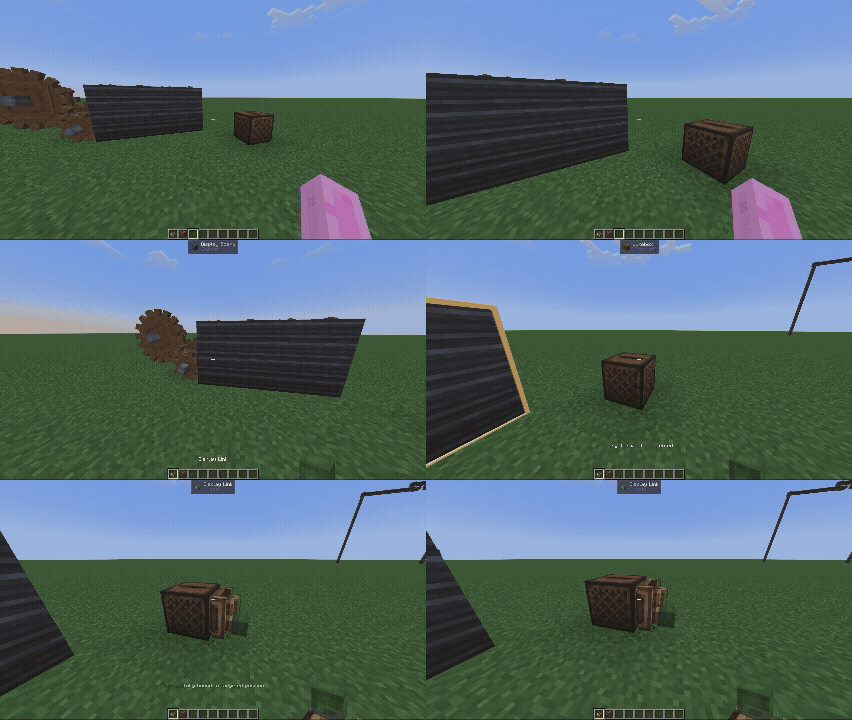
    Once you've placed your display source (Jukebox,) use the Display Link on your board, then place it on the Jukebox.

    <Frame caption="Right-click on a Display Board and a display source to link them.">
      <img src="https://mintcdn.com/ducky-c8b7b49a/oEbd00tK3rFspoX8/images/display_link_example.gif?s=2b1c0e59e58282ecfbb31b5fc8fd11d6" loop width="426" height="240" data-path="images/display_link_example.gif" />
    </Frame>
  </Step>

  <Step title="Configure the Output" icon="https://mintcdn.com/ducky-c8b7b49a/oEbd00tK3rFspoX8/images/minecraft_items/disc_precipice.png?fit=max&auto=format&n=oEbd00tK3rFspoX8&q=85&s=8dae7d198d0a5a7f8c62e6c21791e3e0" width="16" height="16" data-path="images/minecraft_items/disc_precipice.png">
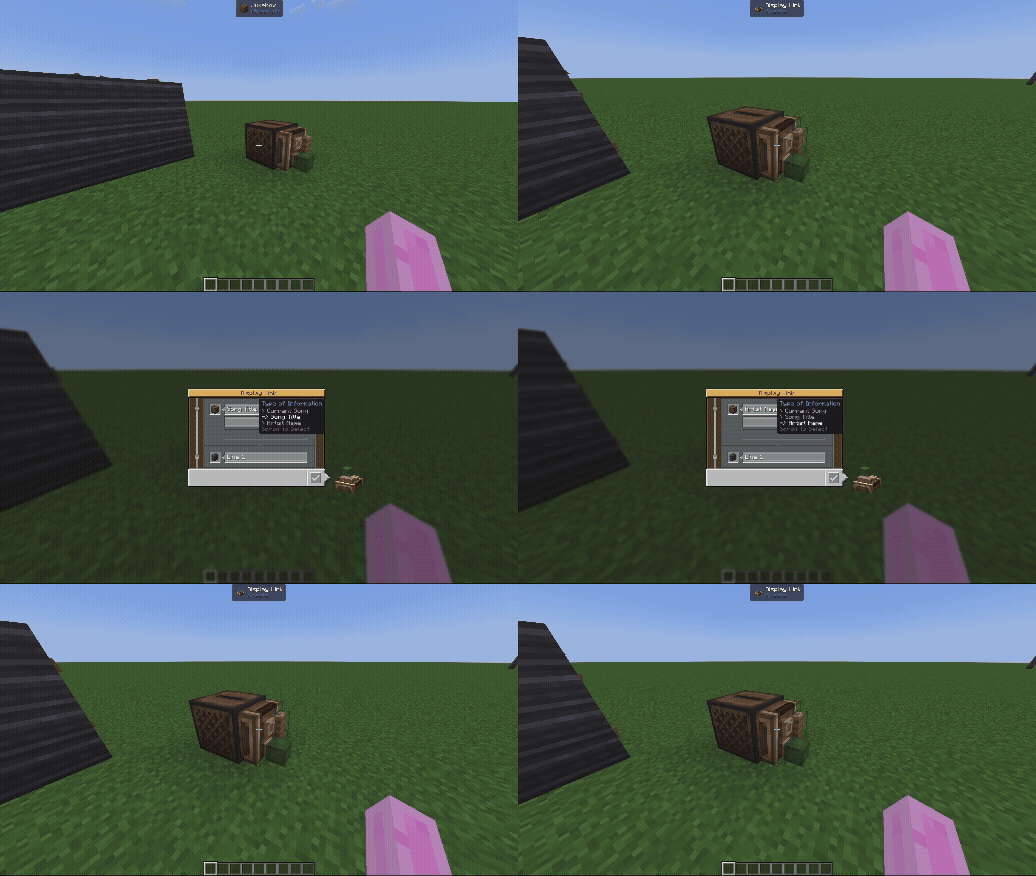
    Right-click the <Icon icon="https://mintcdn.com/ducky-c8b7b49a/oEbd00tK3rFspoX8/images/minecraft_items/create/display_link.png?fit=max&auto=format&n=oEbd00tK3rFspoX8&q=85&s=6c28408004b690f2b0c612bd3e0b5940" size={24} width="32" height="32" data-path="images/minecraft_items/create/display_link.png" /> **Display Link** to configure its output.

    <Frame caption="Right-click on a Display Board and a display source to link them.">
      <img src="https://mintlify.s3.us-west-1.amazonaws.com/ducky-c8b7b49a/images/display_configure_example.gif" loop />
    </Frame>
  </Step>
</Steps>
